
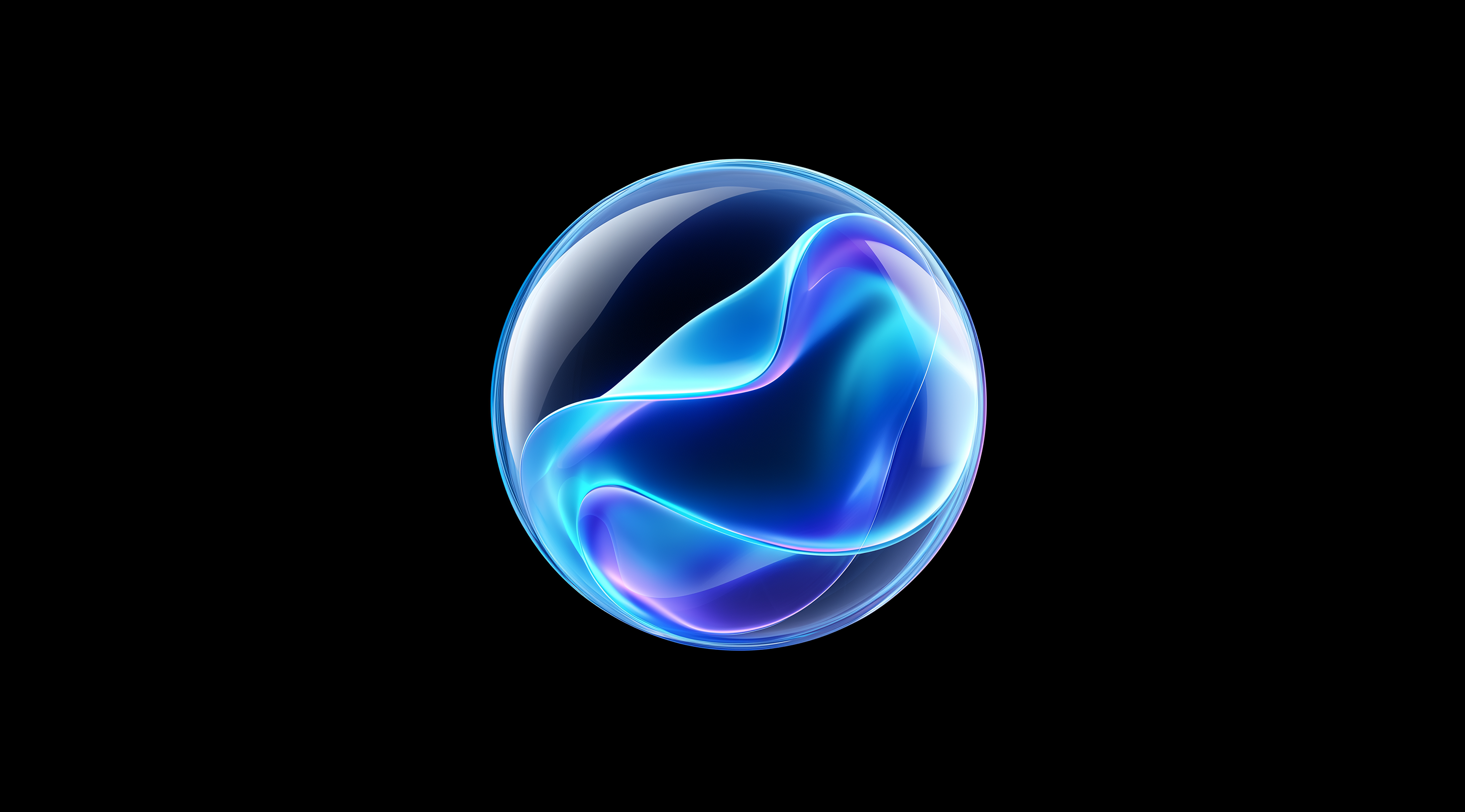
Designing icons for Apple platforms is more than just an artistic endeavor; it's about enhancing user experience through visually compelling and functional designs.
By embracing Apple’s unique design principles, including the innovative Liquid Glass material, developers can create icons that not only stand out but also seamlessly integrate into the Apple ecosystem.
Elevating your icon design means crafting visuals that resonate with users, ensuring that every interaction feels intuitive and engaging.
Understand Apple’s Icon Design Principles
When it comes to designing icons for Apple devices, there’s a unique philosophy at play that combines aesthetics with functionality. Apple places a strong emphasis on creating an intuitive user experience and this is reflected in their icon design principles. At the core of these principles is the idea that icons should not only look good but also communicate their purpose clearly to users. This means that every element in an icon design must serve a purpose, whether it’s to guide users or to enhance the overall feel of an application.
One of the standout features of Apple’s design approach is the introduction of Liquid Glass material. This innovative material adds a layer of depth and dynamism to icons, making them visually engaging while still fitting seamlessly into the Apple ecosystem. By leveraging advanced rendering techniques, icons can reflect and refract light in ways that bring them to life on the screen. This approach to design ensures that the icons resonate with users, offering a sense of familiarity while still pushing the boundaries of what’s possible.
Explore Liquid Glass Material for Icon Depth
Liquid Glass is a remarkable material for creating eye-catching icons. Its translucent nature allows it to blend seamlessly with various backgrounds and lighting, meaning your icons can take on different looks depending on their setting. This flexibility not only boosts their visual appeal but also helps them feel more connected to the overall user interface. Picture an icon that gently shifts its appearance as the lighting changes this kind of interaction keeps users engaged and elevates their experience.
Using Liquid Glass in your icon design means you can play with various properties like translucency and specular highlights. These features allow you to create a sense of depth that flat designs simply can’t match. It’s all about crafting that perfect blend of elegance and functionality, ensuring that your icons are not just decorative but also an essential part of the user experience.
Follow Human Interface Guidelines for Consistency
Consistency is key in any design and Apple's Human Interface Guidelines (HIG) provide a solid foundation for achieving this. The HIG outlines essential standards for icon design, ensuring that your creations align with Apple's aesthetic and functional expectations. By following these guidelines, you can create icons that not only look great but also fit seamlessly into the Apple ecosystem.
The guidelines cover key aspects like size, shape and color, which are vital for creating a cohesive look across different apps and platforms. For instance, using rounded corners and a consistent color scheme helps your icons feel like they belong to the same family rather than being random, separate elements. This kind of uniformity fosters a sense of familiarity, making it easier for users to navigate and interact with your app. In a world where first impressions matter, sticking to these principles can really enhance your design and make a memorable impact on users.
Use Apple’s Icon Composer Tool Effectively
When it comes to designing icons for Apple’s platforms, the Icon Composer tool really makes a difference. It empowers developers to create visually striking icons that stand out while still aligning with the sleek aesthetics Apple is famous for. One of the most exciting features is the option to use Liquid Glass material, which brings depth and a unique quality to the icons. This responsiveness to changing light not only enhances their overall appearance but also ensures they look great across various contexts and devices.
The process is easy to use, making it suitable for both experienced designers and beginners. The tool allows you to customize your icons using a single design file, which streamlines your workflow. You can adjust your icons for different platforms like iOS, macOS and watchOS, all from one central location. This kind of flexibility is a major benefit when you're aiming for a cohesive look across various devices.
Create Layered Icons with Dynamic Lighting
One of the standout features of the Icon Composer is its ability to create layered icons with dynamic lighting effects. This means you can adjust the properties of the Liquid Glass material to play with highlights, shadows and translucency, resulting in icons that feel more three-dimensional. Imagine being able to see how different lighting conditions affect your design in real-time! This capability allows for a level of creativity that simply wasn’t possible with older tools. You can preview how your icons will look in various contexts, ensuring that they maintain their appeal in both bright and dark environments.
Annotate Icons Across Different Appearance Modes
Another handy feature is the option to annotate icons for different appearance modes. Whether your app is in light mode, dark mode or even a monochrome setting, you can customize how your icons look in each scenario. This is important for keeping things clear and visually coherent. It ensures that your icons are easily recognizable and effective, no matter the user's preferences or device settings. By managing these variations, you're not just creating art; you're improving the user experience, which is where design and functionality really come together.
Integrate Icons Seamlessly into Xcode Projects
Once you’ve created your icons, integrating them into your Xcode projects is a breeze. The Icon Composer lets you export your icons straight into your project, making it easy to sync any updates. You won’t have to deal with complicated processes to get your designs into your app anymore; everything is streamlined and user-friendly. This saves you valuable time, allowing you to concentrate on what really matters crafting an amazing user experience. Balancing visual appeal with practical design is essential and with Icon Composer, you have everything you need to make that happen.
Download and Use Official Apple Design Resources
When designing icons for Apple platforms, having the right tools can really make a difference. Apple provides a variety of design materials tailored for developers looking to create exceptional applications. These resources help ensure your designs align with Apple's style and functional standards, enhancing the user experience across their ecosystem. From UI kits to production templates, these tools are designed to streamline your design process and boost the visual quality of your app.
What's great is that Apple organizes these resources by platform, which means you can easily find what you need whether you're working on an iOS app or designing for macOS. With tools that range from templates to fonts, you can ensure your designs not only look good but also perform well within the Apple ecosystem. Plus, many of these resources are regularly updated, so you can keep your designs fresh and relevant.
Access Platform-Specific Templates and UI Kits
Apple’s platform-specific templates and UI kits are fantastic starting points for any developer. Each kit is tailored to the unique characteristics of its respective platform be it iOS, macOS or visionOS. For instance, the iOS and iPadOS resources come packed with UI kits and templates that cater to different app versions, ensuring you have the right elements that fit seamlessly into the latest design trends. This makes adapting your design to the latest updates much easier and more efficient.
If you're using macOS, you can access design kits for both the Tahoe and Sequoia versions. While some of these kits may need Sketch for certain downloads, they offer a treasure trove of resources to help you craft polished, professional applications. Whether you’re an experienced developer or just getting started, these templates can really streamline your process, letting you concentrate on what truly matters creating an exceptional user experience.
Utilize SF Symbols for Symbolic Iconography
One of the standout features Apple offers is SF Symbols, which is a rich collection of over 6,900 icons. These symbols are designed to harmonize with the text and interface elements of Apple’s platforms, providing a consistent visual language that enhances usability. The best part? You can easily customize these symbols to suit your app's needs, whether you're looking to maintain a simple look or want to add a bit more flair.
Using SF Symbols can really transform your icon design. They save you time by offering high-quality, pre-designed icons, while also helping your app maintain a cohesive feel that aligns with Apple’s overall design philosophy. With a range of weights, scales and styles at your disposal, you can create an experience that feels both unique and familiar to your users. Don’t underestimate this valuable resource; it’s a practical tool that can enhance your icon design with ease.
Apply Updated Design Elements Across Apple Platforms
When it comes to designing icons for Apple platforms, embracing the latest design elements is key to creating a cohesive and engaging user experience. Apple has introduced some exciting updates, particularly with the Liquid Glass material that brings a fresh, elegant look to icons. This material not only enhances the visual appeal but also provides a sense of depth and fluidity that aligns perfectly with Apple’s aesthetic.
The integration of these updated design elements across various platforms, such as iOS, iPadOS, macOS, watchOS and tvOS, means that developers can create icons that feel at home no matter where they are used. The new designs reflect a modern sensibility, ensuring that your icons will resonate with users while maintaining brand consistency. With Liquid Glass, icons can adapt dynamically, responding to their environment and providing an immersive experience that captivates users.
Incorporate Dynamic Icon Effects for iOS and macOS
Dynamic icon effects are a significant improvement for both iOS and macOS. These effects make icons feel more lively, encouraging users to engage with them. For example, when you tap an app icon, it might subtly change its shape or color, providing instant feedback that feels responsive. This kind of interaction not only improves the overall experience but also adds a touch of pleasure to everyday tasks.
Icons can reflect and refract their surroundings, allowing them to blend seamlessly with different backgrounds and wallpapers. This means that when users switch up their wallpapers or themes, the icons can adjust in real-time, creating a smooth and natural transition. By adding these dynamic effects, your app can really stand out, giving it a visually striking and memorable appeal.
Customize Icons for Light and Dark Appearance Modes
A key element of modern app design is versatility, particularly with light and dark appearance modes. As dark mode becomes increasingly popular, it's important to make sure your icons look great in both environments. Apple’s Liquid Glass material smartly adjusts its colors according to the active mode, so your icons can remain clear and visually appealing, no matter the background.
By customizing icons for these appearance modes, you can enhance usability and ensure that your app remains accessible to all users. It's not just about aesthetics; it’s about creating an experience that feels intuitive and user-friendly. With the right adjustments, icons can appear vibrant and distinct in light mode while offering a sleek, understated elegance in dark mode. This thoughtful approach to design not only showcases your attention to detail but also strengthens the overall user experience, making your app feel polished and professional.
Enhance Your Icon Design Workflow
When designing icons for Apple platforms, optimizing your workflow can make a significant difference. The right tools and techniques not only help you save time but also improve the overall quality of your final product. By taking advantage of Apple’s resources, you can craft visually appealing icons that really stand out while following the company’s design principles. Whether you’re an experienced designer or just getting started, knowing how to refine your icon design process is important.
One of the standout features that can drastically improve your workflow is the ability to preview your icons in real-time. Imagine being able to see how the elements of your design interact with different lighting conditions and backgrounds instantly. This feature allows you to adjust colors, shadows and highlights on the fly, giving you immediate feedback and ensuring that your icons will look great across various settings. It’s like having a mini studio where you can experiment without committing to changes until you're completely satisfied.
Preview Icons in Real-Time with Dynamic Lighting
The real-time preview feature really changes the way we design icons, especially when working with Liquid Glass materials. It lets you see how your icons will look under different lighting conditions, such as dark mode versus light mode. As you tweak your design, you can observe the highlights and shadows shift, which helps create a natural sense of depth and dimension. This instant feedback inspires you to tap into your creativity without the fear of making irreversible decisions. You can also check how your icons will appear on various devices, ensuring they maintain a cohesive look that aligns perfectly with Apple’s aesthetic.
Export Icons for Marketing and Communication
Once you’ve perfected your icons, the next step is exporting them efficiently for use in your marketing materials or app interfaces. Apple’s Icon Composer makes this process seamless. You can export your icons directly to Xcode projects, which not only saves time but also keeps everything organized. This integration ensures that any changes you make in your design reflect immediately in your project, eliminating the hassle of manual updates.
Exporting icons for marketing purposes is just as easy. The tool lets you create flattened versions of your icons, which are perfect for promotional materials or social media. This versatility means you can get a high-resolution PNG for your website or a smaller version for an app store listing without sacrificing quality. With these export options, you can confidently bring your designs to life, knowing they'll appear polished and professional in any setting.
Streamlining your icon design workflow with these techniques not only enhances your productivity but also amplifies the visual impact of your icons across Apple platforms. Embrace these tools and watch your creativity flourish!
Conclusion
Designing icons for Apple platforms requires a thoughtful blend of aesthetics and functionality, driven by Apple’s design principles and resources.
The innovative use of Liquid Glass material, along with adherence to the Human Interface Guidelines, ensures that icons are not only visually appealing but also enhance the user experience.
Utilizing tools such as the Icon Composer allows developers to create dynamic, adaptable icons that resonate across various devices and appearance modes.
By leveraging Apple’s extensive design resources, developers can simplify their workflows and enhance the quality of their applications, leading to a more cohesive and engaging user experience.
Embracing these practices will undoubtedly contribute to the success of your app within the Apple ecosystem.